7 min read
Cómo hacer un recibo digital
Una guía clara sobre los recibos digitales — qué son, qué formatos usar, cómo entregarlos, y la forma más rápida de crear y guardar uno.
- ¿Cómo hago un recibo digital?
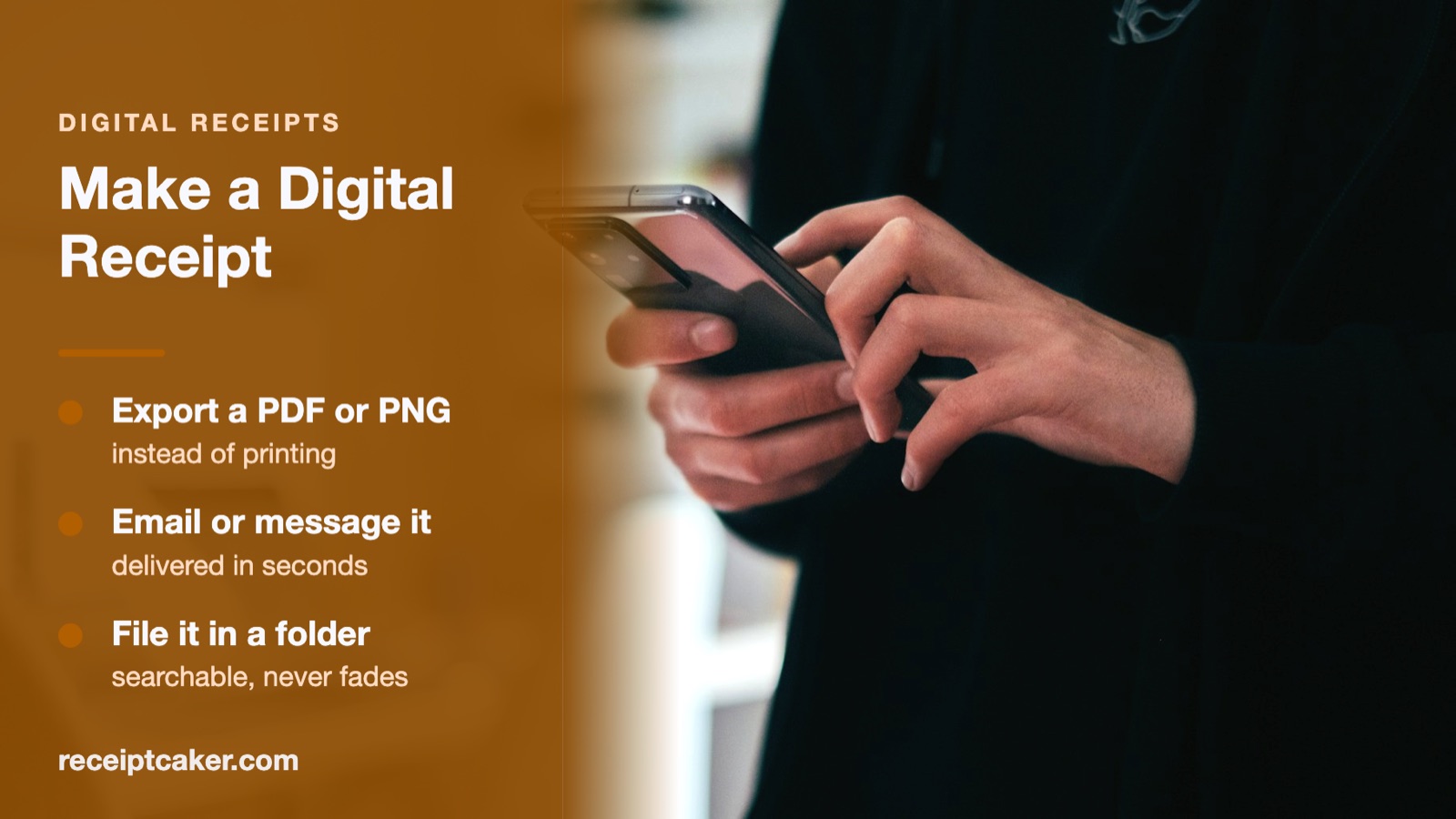
- Introduce el vendedor, la fecha, los artículos, el impuesto y el total en un generador de recibos, y luego exporta el resultado como archivo PDF o imagen en lugar de imprimirlo. Receipt Caker crea el recibo en tu navegador y te permite descargar un PDF o PNG en segundos, listo para enviar por correo o por mensaje al cliente y para guardar en una carpeta que nunca se desvanece.
Qué es un recibo digital
Un recibo digital es la misma prueba de pago que uno impreso, entregado como archivo en lugar de en papel. Lleva la información idéntica — el vendedor, los artículos, el impuesto, el total, la fecha — pero vive como un PDF, una imagen o un correo electrónico que el cliente puede guardar en un dispositivo en lugar de en un cajón. Legalmente lo que importa es la información, no si se imprimió.
Los recibos digitales se han impuesto por buenas razones: no se desvanecen como el papel térmico, son buscables, no cuesta nada guardarlos, y pueden enviarse al instante. Tanto para la empresa como para el cliente, un archivo es sencillamente más fácil de conservar y de encontrar después.
Elegir un formato
Los dos formatos comunes son PDF e imagen. Un PDF es la mejor opción por defecto para cualquier cosa oficial — mantiene un diseño fijo, se imprime limpiamente, y es lo que esperan los sistemas de gastos y los contables. Una imagen como PNG es práctica para compartir algo rápido en un mensaje o un chat, donde el destinatario solo quiere ver el recibo en lugar de archivarlo.
Si no estás seguro, elige PDF: funciona en todas partes donde se necesite un recibo y siempre puede verse como imagen si hace falta. Receipt Caker exporta ambos, así que puedes ajustar el formato a cómo se vaya a usar el recibo.
Entregarlo y guardarlo
Una vez que tienes el archivo, la entrega se reduce a adjuntarlo a un correo, enviarlo en un mensaje o entregar un enlace. No hay que imprimir, ni escanear, ni papel que perder por el camino. Para una empresa, enviar el recibo por correo en el momento de la venta también te da un registro con marca de tiempo de que se envió.
El almacenamiento es donde los recibos digitales realmente compensan. Guárdalos en carpetas con fecha y podrás buscar meses de registros en segundos, conciliar con tu banco sin rebuscar en una caja de zapatos, y no preocuparte nunca por un tique desvanecido. Con copia de seguridad, son mucho más duraderos de lo que el papel fue nunca.
Hacer uno en tu navegador
La vía más rápida a un recibo digital es un generador en el navegador: introduce el vendedor, los artículos y el importe, deja que sume las líneas y aplique cualquier impuesto, y exporta el archivo. No hay nada que instalar ni cuenta que configurar para un recibo básico.
Como el recibo se compone enteramente en tu navegador, los detalles nunca salen de tu dispositivo — la herramienta crea el documento y te lo entrega. Rellena los campos, descarga un PDF o PNG, y tienes un recibo digital listo para enviar y para archivar.
Los pasos de un vistazo
- 1Introduce los datos del recibo. Añade el vendedor, la fecha, los artículos, el impuesto y el total.
- 2Elige un formato de archivo. Escoge PDF para un documento o PNG para una imagen, según cómo lo vayas a enviar.
- 3Exporta el archivo. Descarga el recibo terminado a tu dispositivo.
- 4Entrégalo. Envía por correo, por mensaje o comparte el archivo con el cliente.
- 5Guarda tu copia. Guárdalo en una carpeta con fecha para que sea buscable y nunca se desvanezca.