7 min read
How to Make a Digital Receipt
A clear guide to digital receipts — what they are, which formats to use, how to deliver them, and the quickest way to create and store one.
- How do I make a digital receipt?
- Enter the seller, date, items, tax, and total into a receipt generator, then export the result as a PDF or image file instead of printing it. Receipt Caker builds the receipt in your browser and lets you download a PDF or PNG in seconds, ready to email or message to the customer and to store in a folder that never fades.
What a digital receipt is
A digital receipt — sometimes called an e-receipt or electronic receipt — is the same proof of payment as a printed one, delivered as a file rather than on paper. It carries the identical information — the seller, the items, the tax, the total, the date — but lives as a PDF, an image, or an email that the customer can store on a device instead of in a drawer. Legally what matters is the information, not whether it was printed.
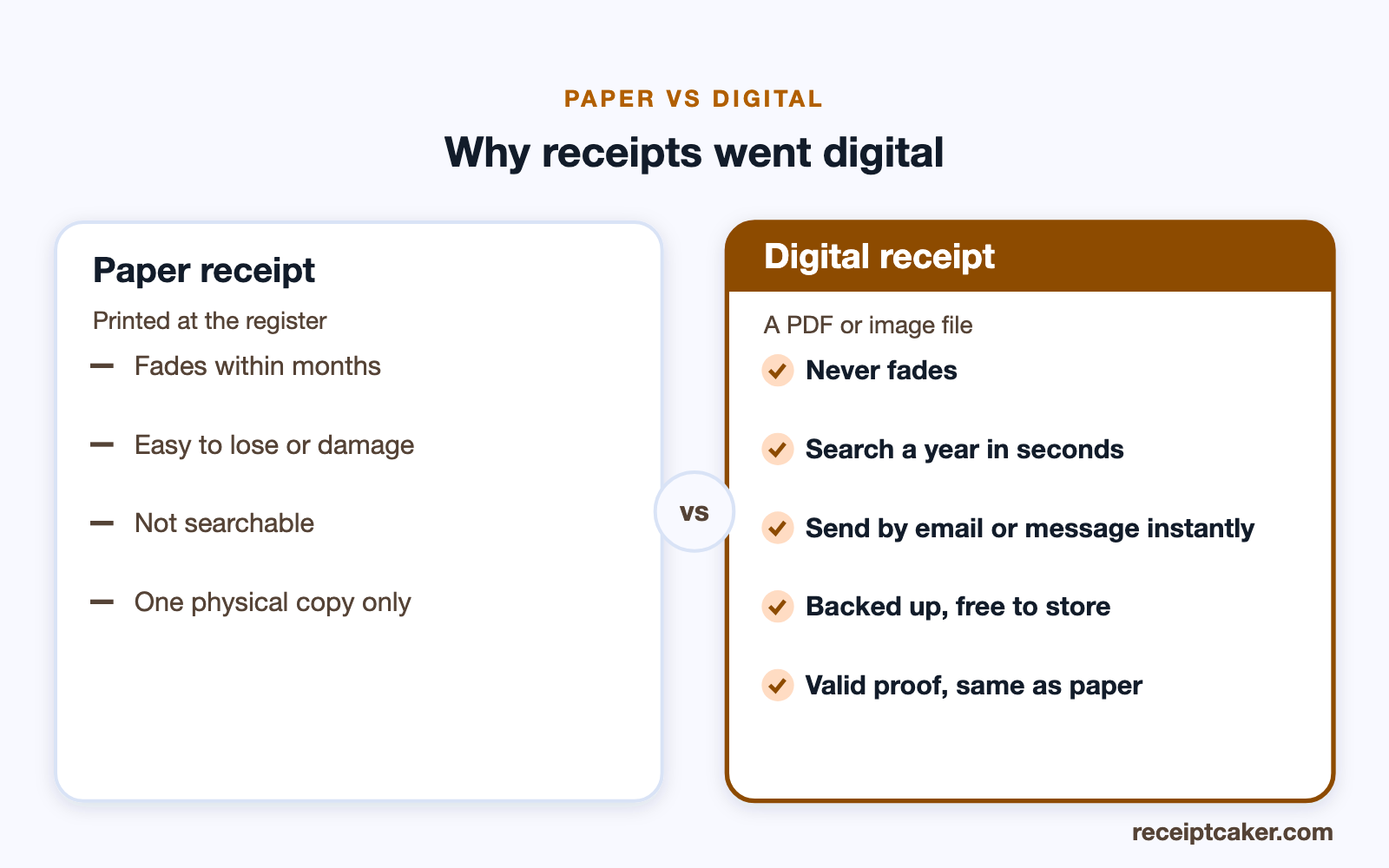
Digital receipts have taken over for good reasons: they do not fade the way thermal paper does, they are searchable, they cost nothing to store, and they can be sent instantly. For both the business and the customer, a file is simply easier to keep and to find later — which is why so many shops now offer to email a receipt instead of, or as well as, printing one.
Choosing a format: PDF or image
The two common formats are PDF and image. A PDF is the better default for anything official — it holds a fixed layout, prints cleanly, and is the format expense systems, accountants and tax authorities expect. An image such as PNG is handy for a quick share in a message or a chat, where the recipient just wants to see the receipt rather than file it.
If you are unsure, choose PDF: it works everywhere a receipt is needed and can always be opened as an image if required, whereas turning a casual snapshot into a proper document later is more awkward. Receipt Caker exports both, so you can match the format to how the receipt will be used.
Turning a paper receipt digital
You do not only make digital receipts from scratch — you can also convert the paper ones you already have. Photographing or scanning a receipt and saving it as a PDF captures the details before the thermal ink fades, and it folds a stray slip into the same searchable, backed-up system as the rest of your records.
For a clean result, capture the receipt flat and well lit, crop out the background, and save it with a descriptive name. A tool that turns a photo straight into a tidy PDF does the cropping and formatting for you, so a shoebox of receipts becomes a folder of files without much effort.
Delivering it to the customer
Once you have the file, delivery is a matter of attaching it to an email, sending it in a message, or handing over a link. There is no printing, no scanning, and no paper to lose in transit. For a business, emailing the receipt at the point of sale also gives you a timestamped record that it was sent, and some point-of-sale systems automate this by texting or emailing a receipt the moment payment clears.
If you are issuing receipts one at a time, simply export the file and attach it to your usual email or message. Keeping your own copy at the same time means the act of sending the receipt also builds your record of the sale. It is worth confirming the customer's address or number is right before you send, since a receipt that never arrives is no proof at all.
Storing and organising them
Storage is where digital receipts really pay off. Keep them in dated folders — by month, by client, or by category — and you can search a year of records in seconds, reconcile against your bank without hunting through a shoebox, and never worry about a faded slip. A consistent file name that includes the date and the seller makes any receipt findable later.
Because the files are small and cheap to keep, back them up somewhere separate from the device that made them. A backed-up folder of receipts is far more durable than paper ever was, and it turns record-keeping from a chore into a search box.
If you handle a high volume, a dedicated receipt or expense app can capture, categorise and even read the totals for you, syncing everything to the cloud automatically. That is overkill for the occasional receipt — a well-named PDF in a dated folder is plenty — but for a business logging dozens of purchases a month the automation earns its place. Whichever route you take, the principle is the same: one findable, unalterable copy per transaction, kept somewhere it will survive.
Are digital receipts valid — and how long to keep them?
Yes, a digital receipt is as valid as a paper one. Tax authorities, courts and businesses care about the information a receipt contains, not the material it is printed on, and many tax authorities explicitly accept digital or scanned receipts for substantiating expenses. The main requirement is that the receipt is complete, legible and unaltered.
Retention follows the usual rule: in the US the IRS can generally look back three years, so keeping digital receipts at least that long is the safe baseline, and businesses should hold a documentary receipt for expenses above $75. Because files do not fade and can be backed up, digital storage actually makes meeting those retention rules easier than a drawer of thermal slips ever did.
Making one in your browser
The quickest route to a digital receipt is a browser-based generator: enter the seller, the items and the amount, let it total the lines and apply any tax, and export the file. There is nothing to install and no account to set up for a basic receipt, and it produces a clean, consistent document every time.
Because the receipt is composed entirely in your browser, the details never leave your device — the tool builds the document and hands it to you. Fill in the fields, download a PDF or PNG, and you have a digital receipt ready to send and to file. As always, it should record a real sale: the format is new, but the honesty a receipt depends on is not.
Steps at a glance
- 1Enter the receipt details. Add the seller, date, items, tax, and total.
- 2Choose a file format. Pick PDF for a document or PNG for an image, depending on how you will send it.
- 3Export the file. Download the finished receipt to your device.
- 4Deliver it. Email, message, or share the file with the customer.
- 5Store your copy. Save it in a dated folder so it is searchable and never fades.